KomikoAI vs Sculptok
Plans, free access, limits and intended use side by side, taken from each vendor’s own pages. No score and no winner: the facts show where the two differ.
Change tools
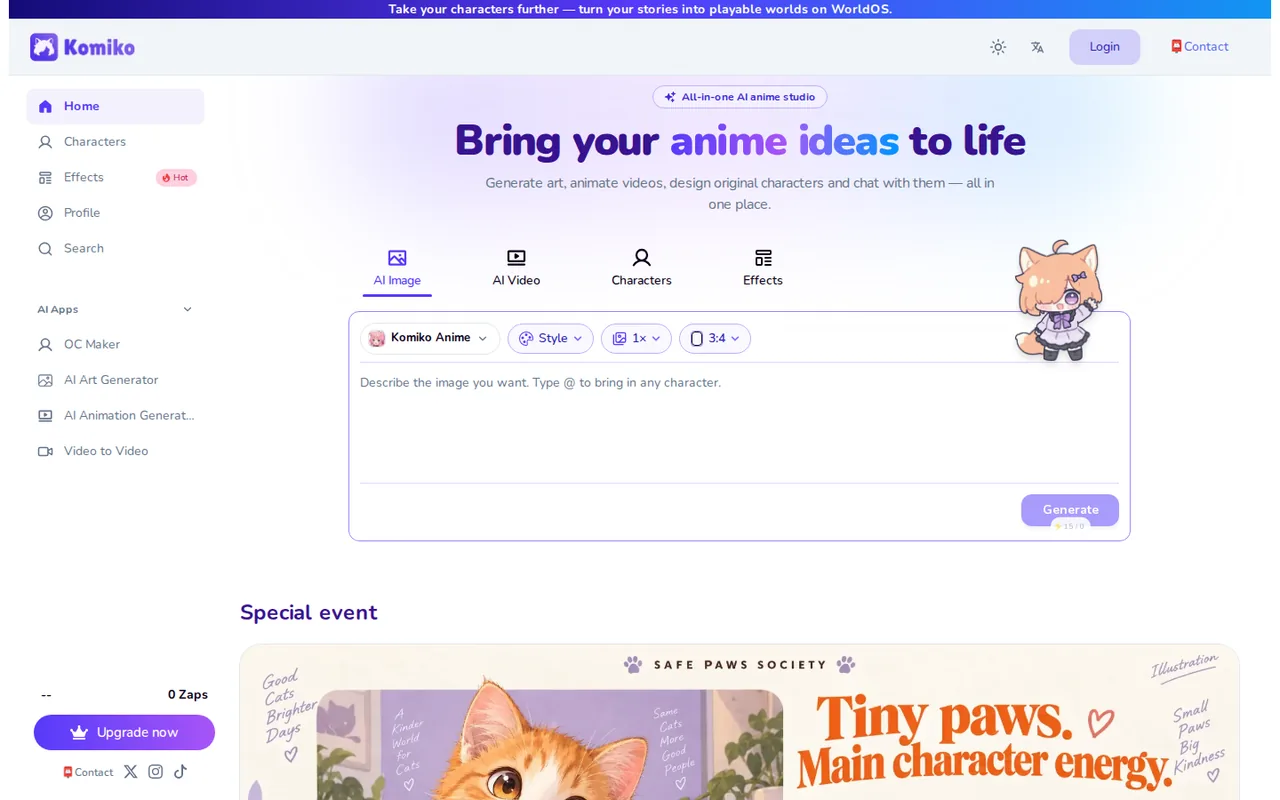
AI anime studio for images, short videos, original characters and comics, paid in zaps (credits) with 500 free zaps at signup and 80 free daily zaps

Count HD downloads, not draws, before choosing a plan
- Free access
- KomikoAI: Free access
- Sculptok: Free access
- Paid from
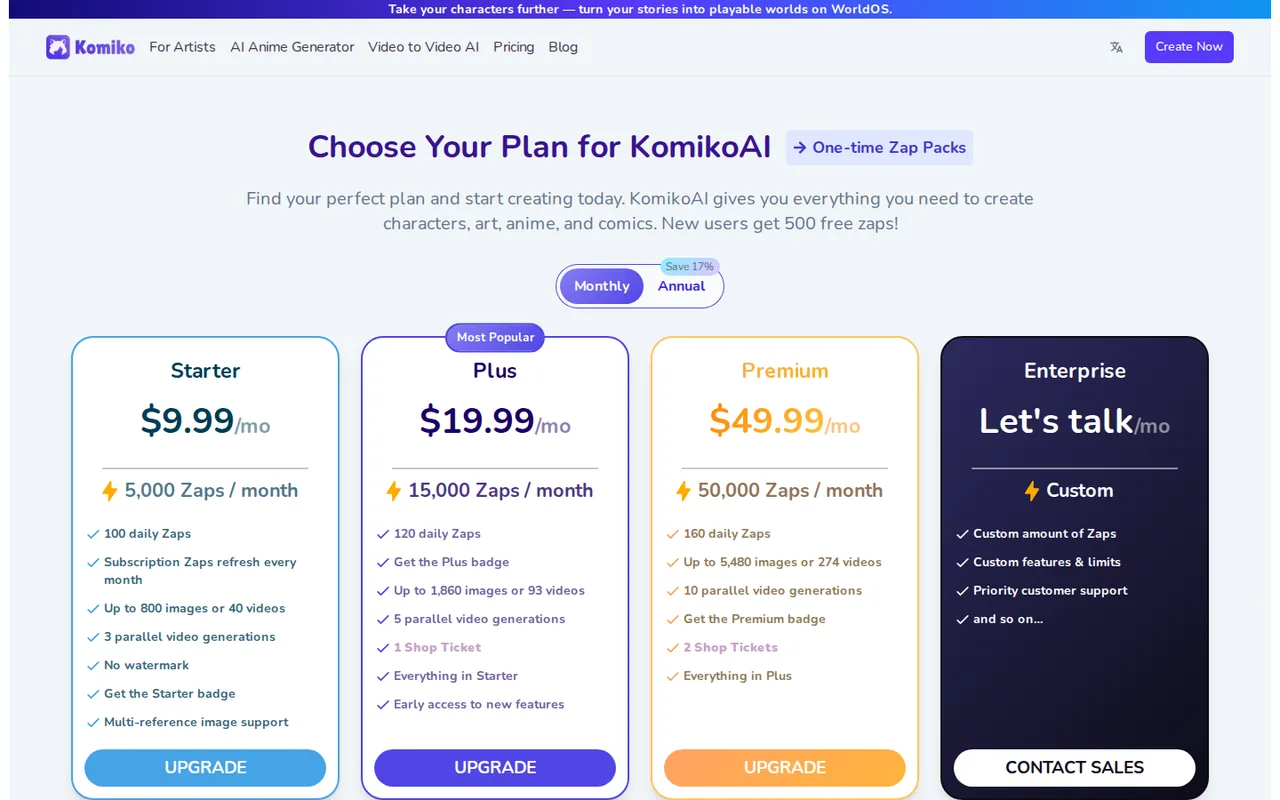
- KomikoAI: USD 4.99 to $399.99 one-time
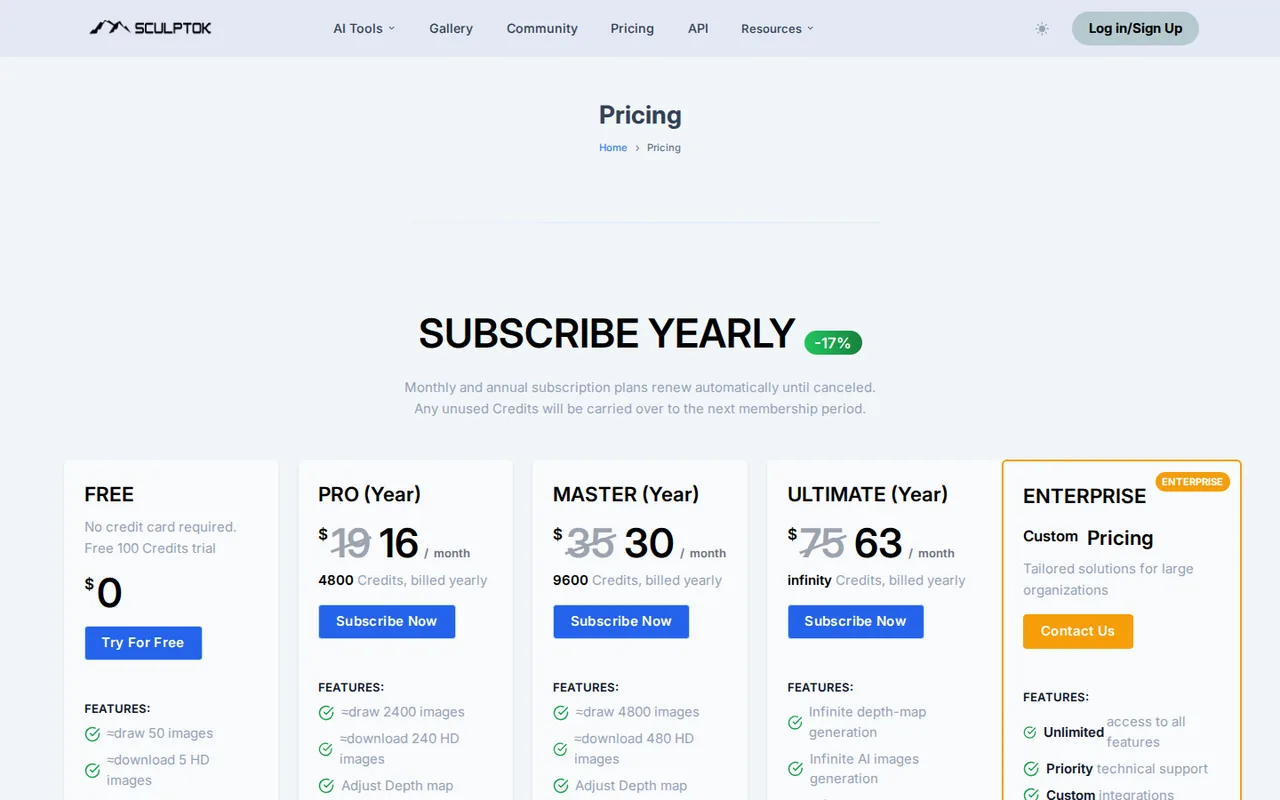
- Sculptok: USD 15 for 200
- Plans listed
- KomikoAI: 6
- Sculptok: 6
- Public API
- KomikoAI: Not confirmed
- Sculptok: Not confirmed
Where KomikoAI and Sculptok differ
- Pricing checkPrices confirmed for KomikoAI; pricing review due for Sculptok.
Head to head
Each value from the tool’s profile and the vendor’s own pages
| KomikoAI | Fact | Sculptok |
|---|---|---|
| Access and price | ||
| Free access availableFree · USD 0 | Free accessSame | Free access availableFree · USD 0 |
| USD 4.99 to $399.99 one-timeZap packs · also a $2.99 monthly card | Lowest listed paid plan | USD 15 for 200Extra credits · $35 for 400 or $90 for 1,600 credits, one-time |
| Free $0; Starter $9.99, Plus $19.99, Premium $49.99 per month billed monthly; $99.90, $199.90, $499.90 billed annually | Pricing model | 100 free credits; paid from $19/month |
| 6 | Plans listedSame | 6 |
| Not confirmed | Public API | Not confirmed |
| Not confirmed | Card to start | Not confirmed |
| Not confirmed | Open source | Not confirmed |
| What it is for | ||
| Hobbyists and fan creators who want anime-style images, short clips and comic pages from prompts and who prefer buying credits to paying per seat | Built for | Depth maps and relief files for laser or CNC work |
| Images & design | CategorySame | Images & design |
| Platforms |
|
| Works with |
|
| How current | ||
| Profile sources checked | ||
| Prices confirmed · Nov 14, 2026 | Pricing checkDiffers | Pricing review due · Sep 29, 2026 |
Official source check for both tools. No hands-on testing and no score: “Differs” marks a documented difference, not a better tool.
Plans and prices
KomikoAI
Prices confirmed · Nov 14, 2026- FreeUSD 0
- StarterUSD 9.99 per month billed monthlyUSD 99.90 billed annually, shown as $8.33 a month
- PlusUSD 19.99 per month billed monthlyUSD 199.90 billed annually, shown as $16.66 a month
- PremiumUSD 49.99 per month billed monthlyUSD 499.90 billed annually, shown as $41.66 a month
- EnterpriseCustom
Show 1 more plan
- Zap packsUSD 4.99 to $399.99 one-timealso a $2.99 monthly card
Sculptok
Pricing review due · Sep 29, 2026- FreeUSD 0
- ProUSD 19 per monthbilled monthly · or $16 per month on yearly billing, 4,800 credits billed yearly
- MasterUSD 35 per monthbilled monthly · or $30 per month on yearly billing, 9,600 credits billed yearly
- UltimateUSD 75 per monthbilled monthly · or $63 per month on yearly billing
- EnterpriseCustom pricing
Show 1 more plan
- Extra creditsUSD 15 for 200USD 35 for 400 or $90 for 1,600 credits, one-time
Strengths and limits
KomikoAI
Strengths
- Free accounts can try every tool: The pricing page says new accounts get 500 free zaps, and the FAQ says free zaps work in every KomikoAI tool and that Free users can claim 80 daily zaps.
- One place for image, video and comics: The homepage lists an image generator, a video generator, effects, an original character maker, an AI Comic generator, text to speech and an agent in one studio.
- Failed generations are not charged: The pricing FAQ says zaps are not deducted if a generation fails.
Limits to plan around
- The page does not price a single generation: Plans list ceilings such as up to 800 images or 40 videos on Starter, but the implied zaps per image differ between plans (about 6 on Starter, about 8 on Plus), so the real cost of one image or video has to be read in the app.
- You cannot move between paid plans: The pricing FAQ says upgrades are allowed only from the free plan to a paid one, and that switching between paid plans is not supported at the moment.
- Subscription zaps do not roll over: The FAQ and Terms say unused monthly zaps expire at the end of the cycle and daily zaps expire at midnight; only separately bought packs are described as not expiring.
Sculptok
Strengths
- No card to start: New accounts receive 100 credits without payment details.
- Credits carry over while subscribed: Unused plan credits roll into the next period, and extra credit packs never expire.
- Fits existing 3D tools: Blender and ZBrush plugins plus STL export connect to modelling and CAM workflows.
Limits to plan around
- 16-bit output sits on the top plan: Large-resolution 16-bit depth maps are listed only on Ultimate.
- No refunds for AI services: The terms treat payments as final, and AI services as non-refundable.
- Short file retention: The FAQ says generated images are deleted automatically after one month.
See both products
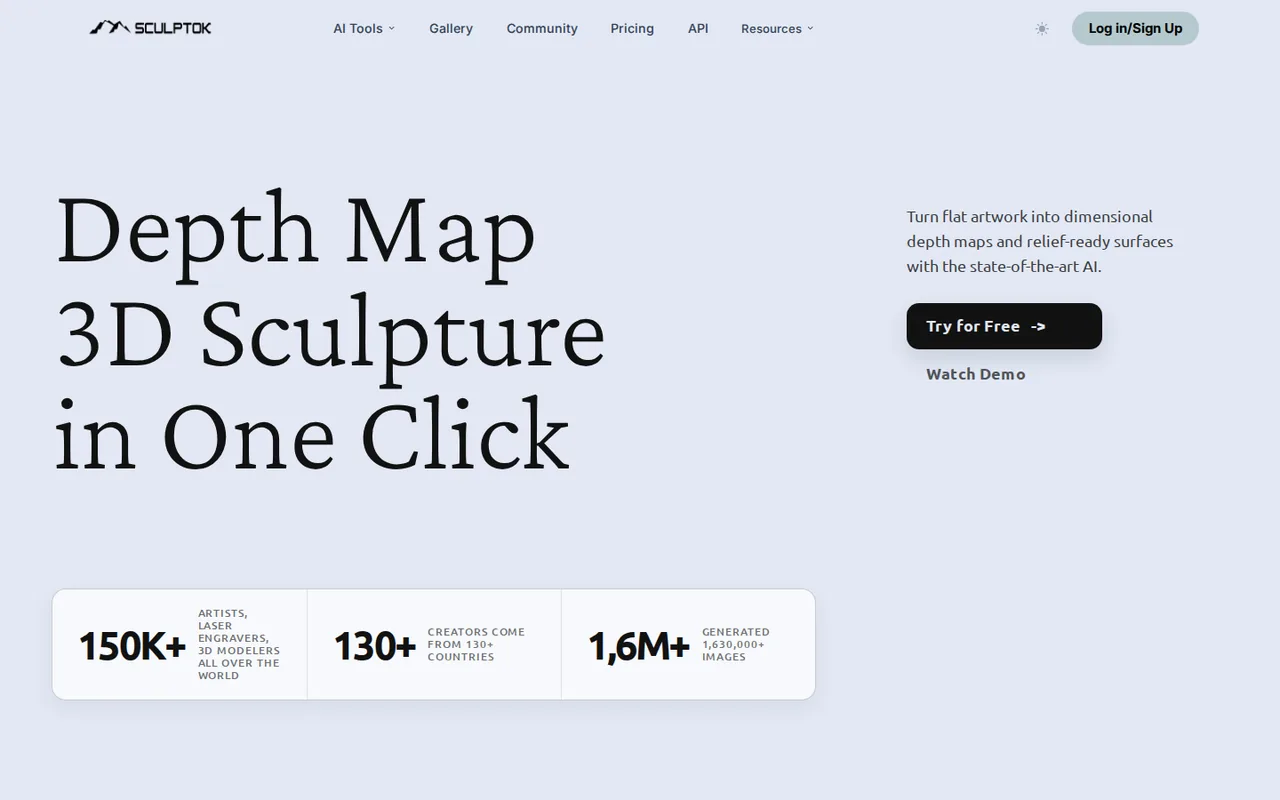
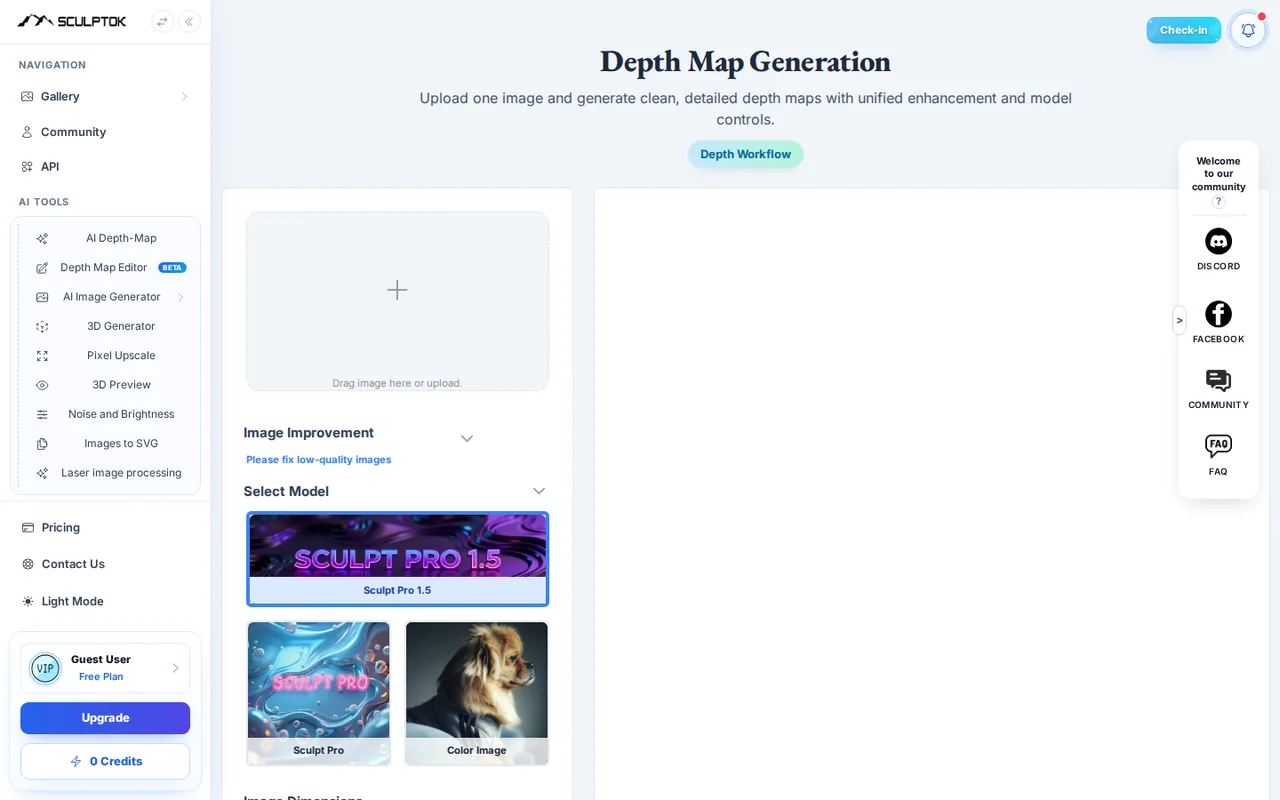
Start from your task, not from a winner.
Run both tools on the same real task, then compare the result, how much editing it needs and how fast it uses your plan’s allowance.
How we reviewChange this pair
Choose tools
Choose two tools below. You can replace either selection at any time.
Audio & voice
Automation
Coding
Data & spreadsheets
Images & design
Presentations
Research & sources
Video & editing
Website builders
Writing & content
Comparing tools from different categories is fine, and often useful — a writing assistant and a research tool solve different halves of the same job. The table will show you exactly where they diverge.
Questions about comparing tools
How does the comparison work?
Add two tools to the comparison tray from any tool card, then open this page. The table pulls each tool's verified plan details, platforms, strengths and limits from its profile, so both columns carry the same kind of evidence, with a separate source-check date for each tool.
Do you declare a winner?
No. The table sets two tools against each other on documented facts, not on a score. Which one wins depends on your task, your budget and your usage volume — three things we cannot see from here.
Why are some cells empty or marked unverified?
Because we could not confirm that detail on the vendor's own pages. Rather than filling the gap with a figure from elsewhere, we mark it and say why on the tool's profile.
Can I compare more than two tools?
Not at once. Two columns keep the differences readable and force a real decision. Remove either selected tool to replace it, or clear both to start a new pair.
Every figure in the table above comes from the linked profile, where the source and the verification date are listed. Browse all tools or read the editorial policy.