Napkin AI vs SlideSpeak
Plans, free access, limits and intended use side by side, taken from each vendor’s own pages. No score and no winner: the facts show where the two differ.
Change tools
Budget credits by the words you select

AI presentation maker that turns documents and prompts into editable PowerPoint decks, narrated videos and quizzes
- Free access
- Napkin AI: Free access
- SlideSpeak: Free access
- Paid from
- Napkin AI: USD 9 per person per month
- SlideSpeak: USD 29 per month billed monthly
- Plans listed
- Napkin AI: 4
- SlideSpeak: 4
- Public API
- Napkin AI: Yes
- SlideSpeak: Yes
Where Napkin AI and SlideSpeak differ
On the listed facts these two look alike. The plans, limits and screenshots below show where the details part ways.
Head to head
Each value from the tool’s profile and the vendor’s own pages
| Napkin AI | Fact | SlideSpeak |
|---|---|---|
| Access and price | ||
| Free access availableFree · USD 0 | Free accessSame | Free access availableFree · USD 0 |
| USD 9 per person per monthPlus · billed yearly · or $12 billed monthly | Lowest listed paid plan | USD 29 per month billed monthlyPremium · or $24.65 per month on annual billing |
| Free weekly credits; Plus from $9/person/month billed yearly | Pricing model | Free plan without downloads; Premium from $29 a month, or $24.65 a month on annual billing |
| 4 | Plans listedSame | 4 |
| Yes | Public APISame | Yes |
| Not confirmed | Card to start | Not confirmed |
| No | Open sourceSame | No |
| What it is for | ||
| Turning written text into editable business diagrams | Built for | Turning a PDF, Word or Excel document into an editable PowerPoint deck |
| Presentations | CategorySame | Presentations |
| Platforms |
|
| Works with |
|
| How current | ||
| Profile sources checked | ||
| Prices confirmed · Sep 29, 2026 | Pricing checkSame | Prices confirmed · Oct 24, 2026 |
Official source check for both tools. No hands-on testing and no score: “Differs” marks a documented difference, not a better tool.
Plans and prices
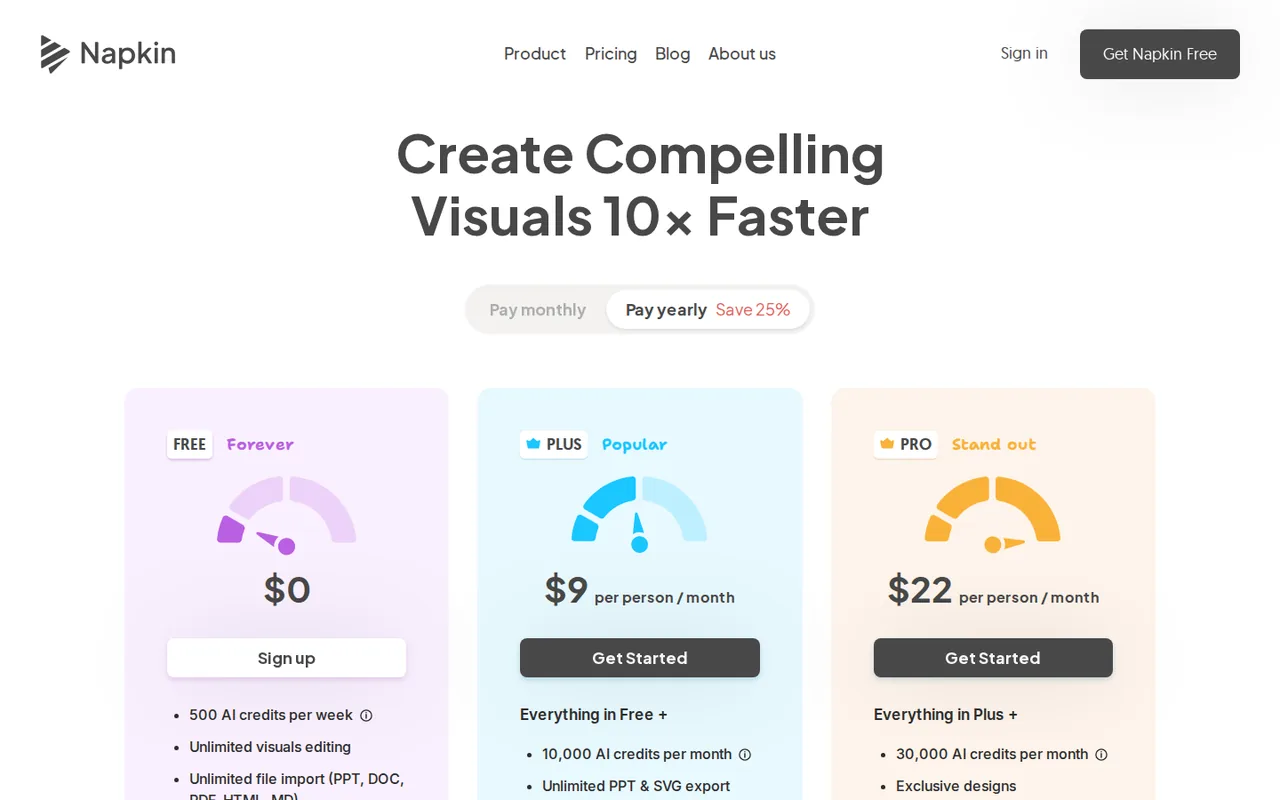
Napkin AI
Prices confirmed · Sep 29, 2026- FreeUSD 0
- PlusUSD 9 per person per monthbilled yearly · or $12 billed monthly
- ProUSD 22 per person per monthbilled yearly · or $30 billed monthly
- EnterpriseCustom pricing
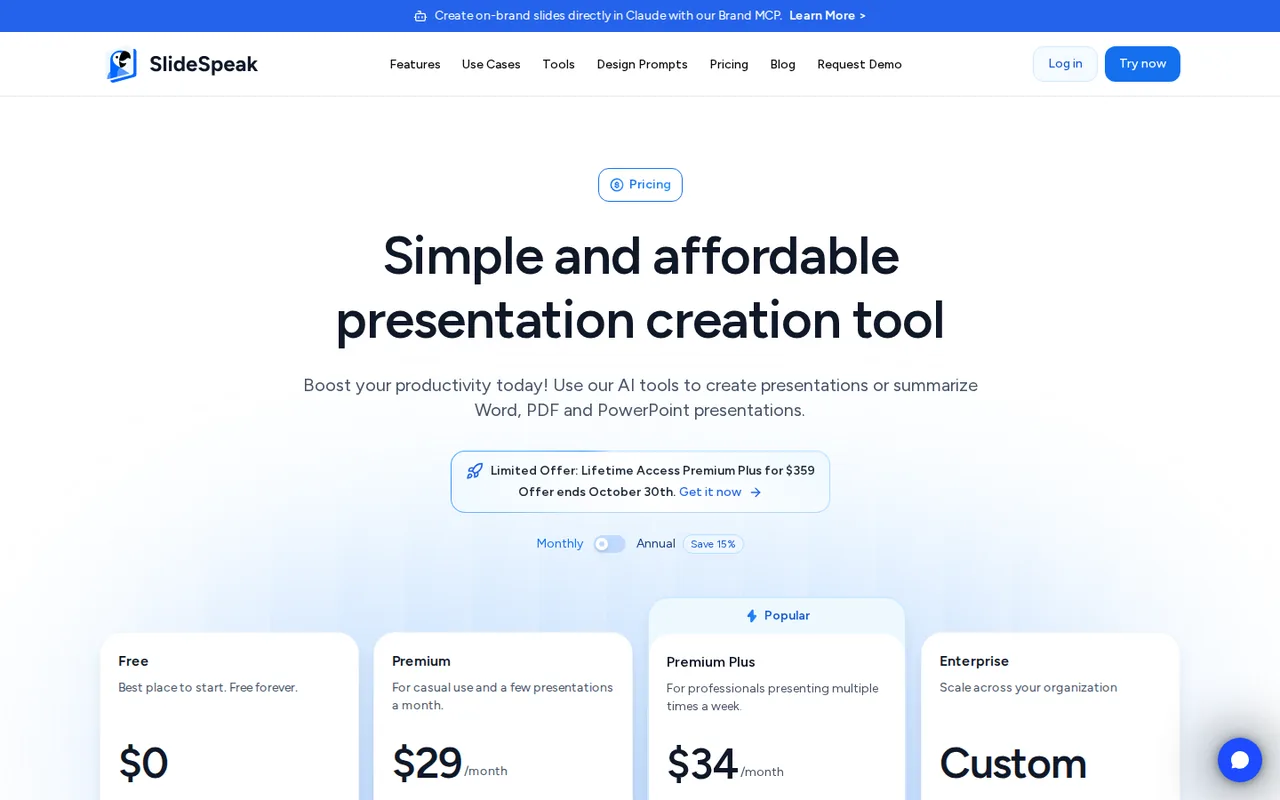
SlideSpeak
Prices confirmed · Oct 24, 2026- FreeUSD 0
- PremiumUSD 29 per month billed monthlyor $24.65 per month on annual billing
- Premium PlusUSD 34 per month billed monthlyor $28.90 per month on annual billing
- EnterpriseCustom quote
Strengths and limits
Napkin AI
Strengths
- Credit-free editing: Changing colors, icons, sizes and shapes after generation does not consume credits.
- One plan covers Visuals and Slides: Free, Plus and Pro all include both products at no extra cost.
- Useful free exports: Free includes unlimited PNG and PDF export and unlimited file imports.
Limits to plan around
- Watermark on Free: The Napkin logo toggle is locked on for every Free export.
- No credit rollover: Unused monthly credits are lost at each reset on paid plans.
- Content used by default: Content may be used in anonymized form to improve models unless you opt out in settings.
SlideSpeak
Strengths
- Real PowerPoint file: The PPTX download keeps editable text, shapes, images, tables, charts, speaker notes and transition timing.
- Downloads cost nothing extra: PowerPoint, PDF and Google Slides downloads use no credits once you are on a paid plan.
- Share links on every plan: Viewers open a shared deck in the browser without a SlideSpeak account, including decks made on Free.
Limits to plan around
- Free cannot download: Free decks can be shared as links, but PowerPoint, PDF and Google Slides downloads need a paid plan; only translated decks are an exception.
- Small one-time free allowance: Free credits are 100 at sign-up and do not refresh, and the AI 5.0 engine is not included.
- Credits expire monthly: Unused plan credits do not roll over, and each team member needs a separate paid plan with separate credits.
See both products
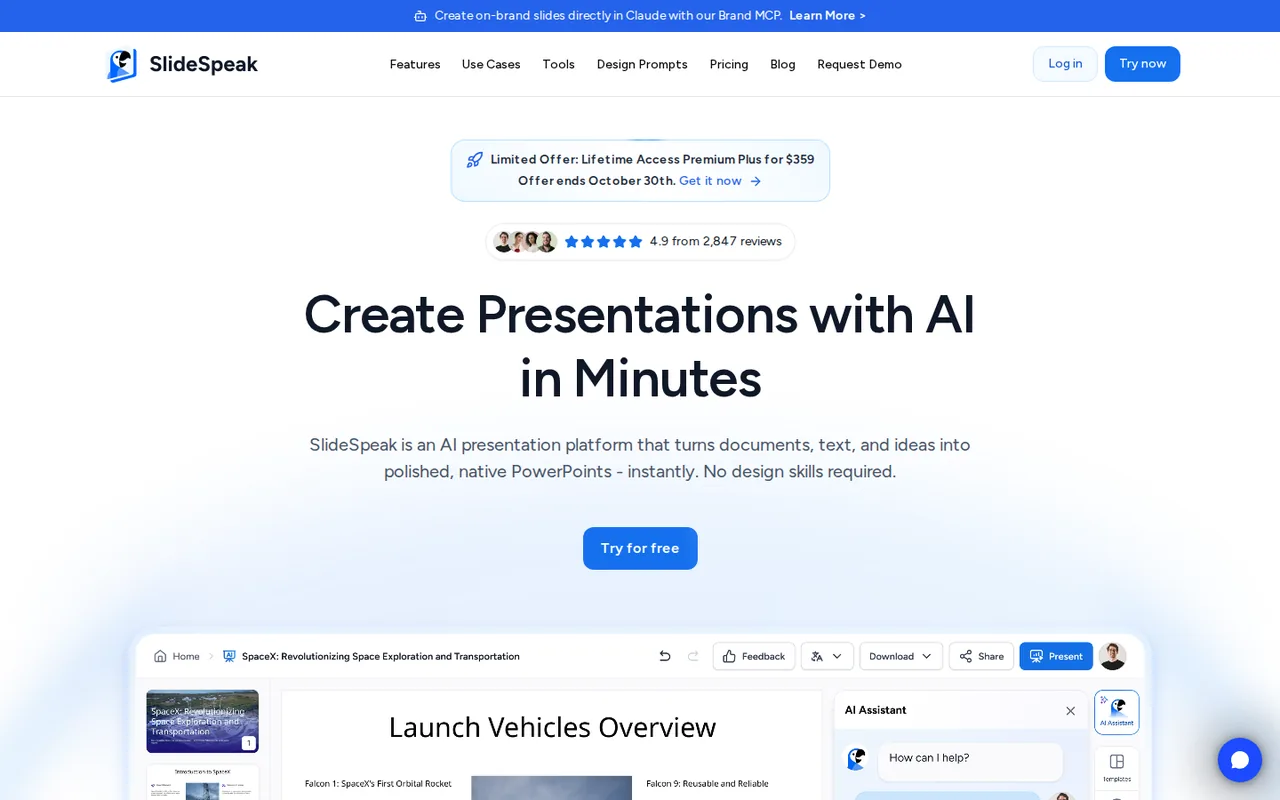
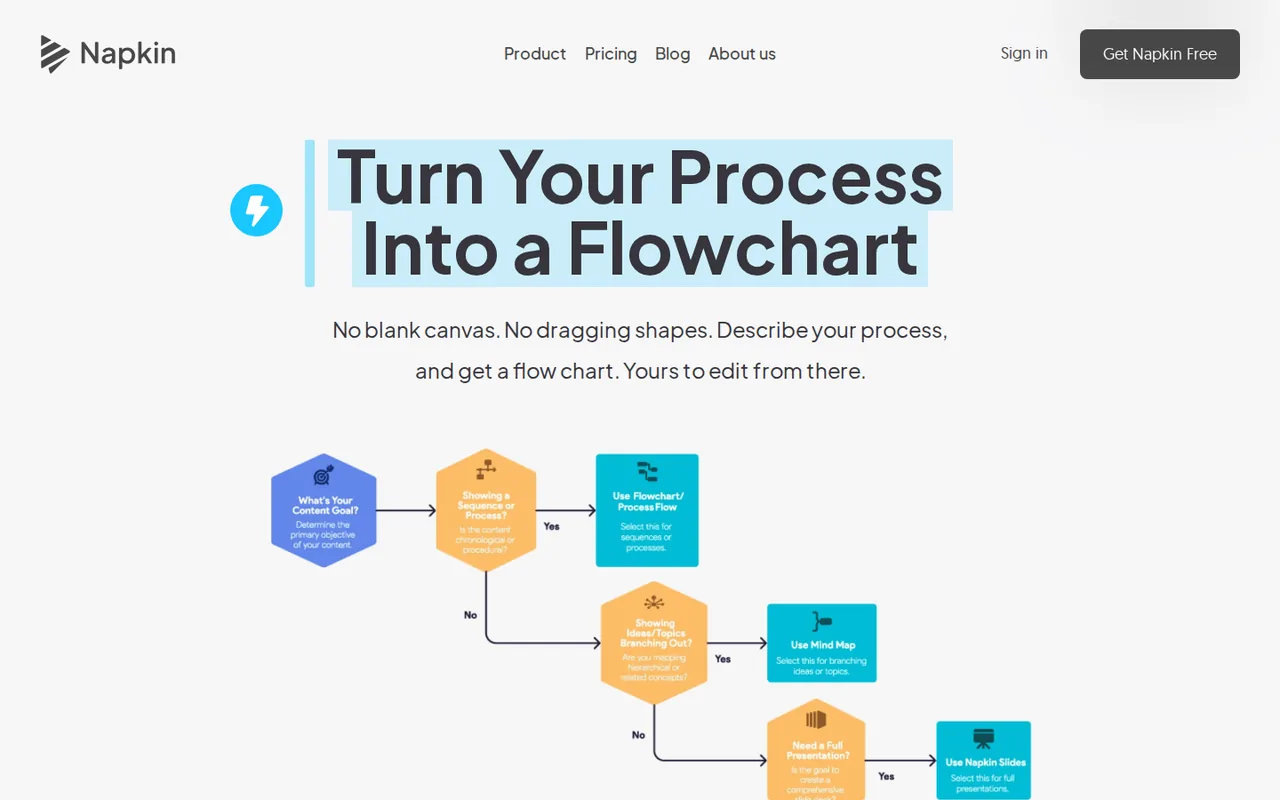
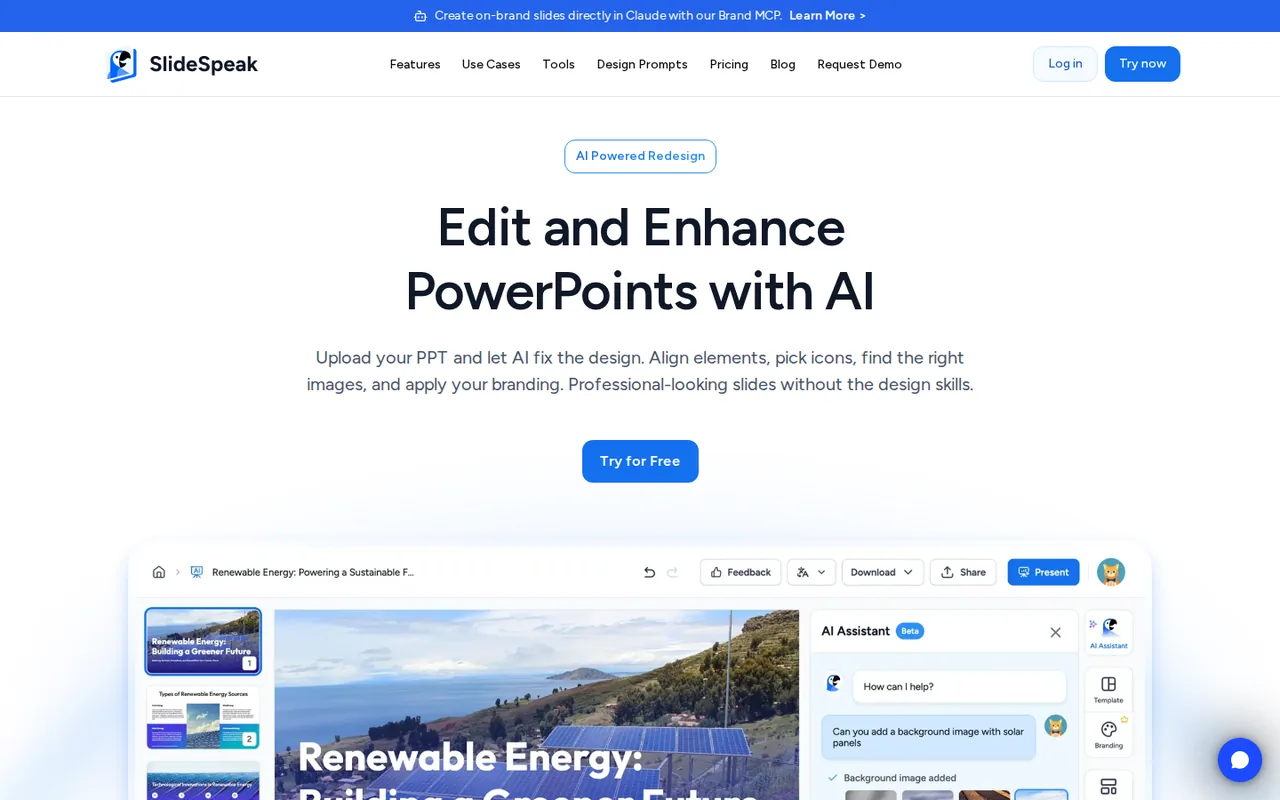
Start from your task, not from a winner.
Run both tools on the same real task, then compare the result, how much editing it needs and how fast it uses your plan’s allowance.
How we reviewChange this pair
Choose tools
Choose two tools below. You can replace either selection at any time.
Audio & voice
Automation
Coding
Data & spreadsheets
Images & design
Presentations
Research & sources
Video & editing
Website builders
Writing & content
Comparing tools from different categories is fine, and often useful — a writing assistant and a research tool solve different halves of the same job. The table will show you exactly where they diverge.
Questions about comparing tools
How does the comparison work?
Add two tools to the comparison tray from any tool card, then open this page. The table pulls each tool's verified plan details, platforms, strengths and limits from its profile, so both columns carry the same kind of evidence, with a separate source-check date for each tool.
Do you declare a winner?
No. The table sets two tools against each other on documented facts, not on a score. Which one wins depends on your task, your budget and your usage volume — three things we cannot see from here.
Why are some cells empty or marked unverified?
Because we could not confirm that detail on the vendor's own pages. Rather than filling the gap with a figure from elsewhere, we mark it and say why on the tool's profile.
Can I compare more than two tools?
Not at once. Two columns keep the differences readable and force a real decision. Remove either selected tool to replace it, or clear both to start a new pair.
Every figure in the table above comes from the linked profile, where the source and the verification date are listed. Browse all tools or read the editorial policy.