OpusClip vs AnimG
Plans, free access, limits and intended use side by side, taken from each vendor’s own pages. No score and no winner: the facts show where the two differ.
Change tools
Charged by source minutes, not clips exported

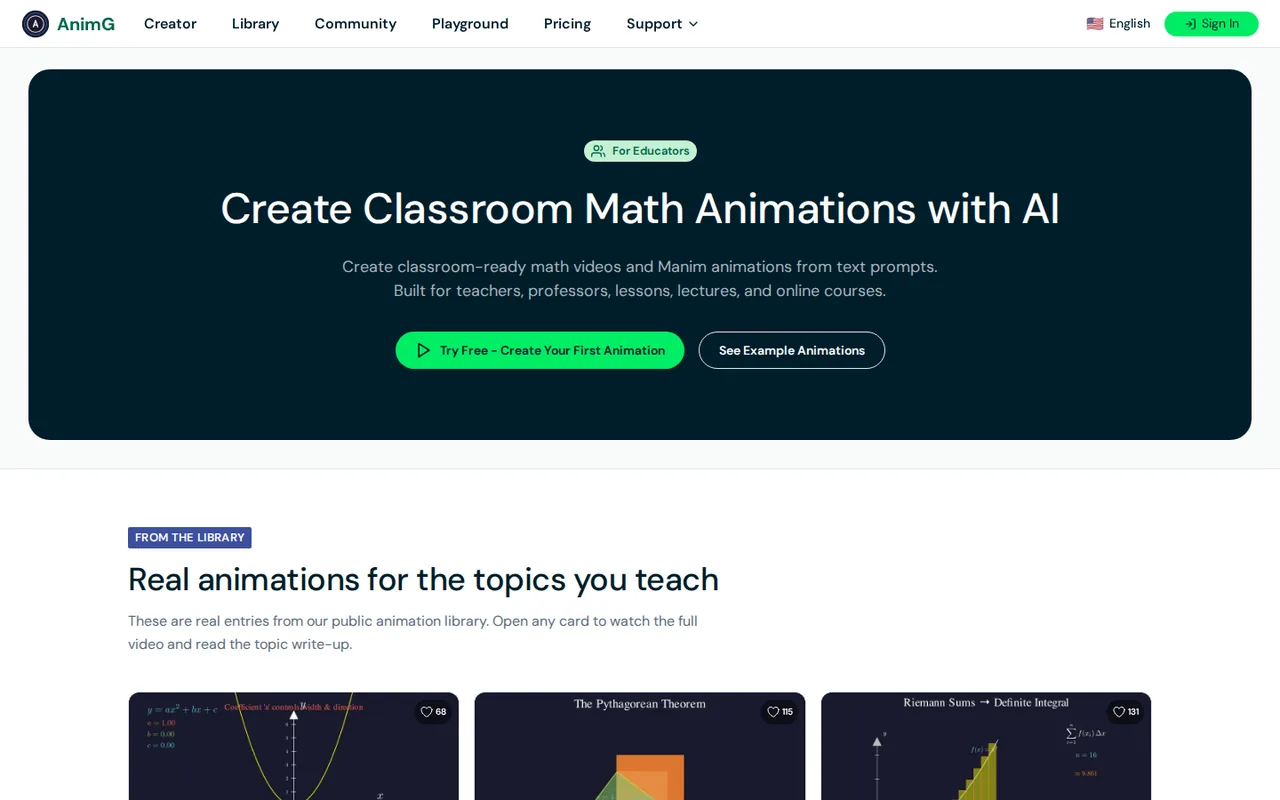
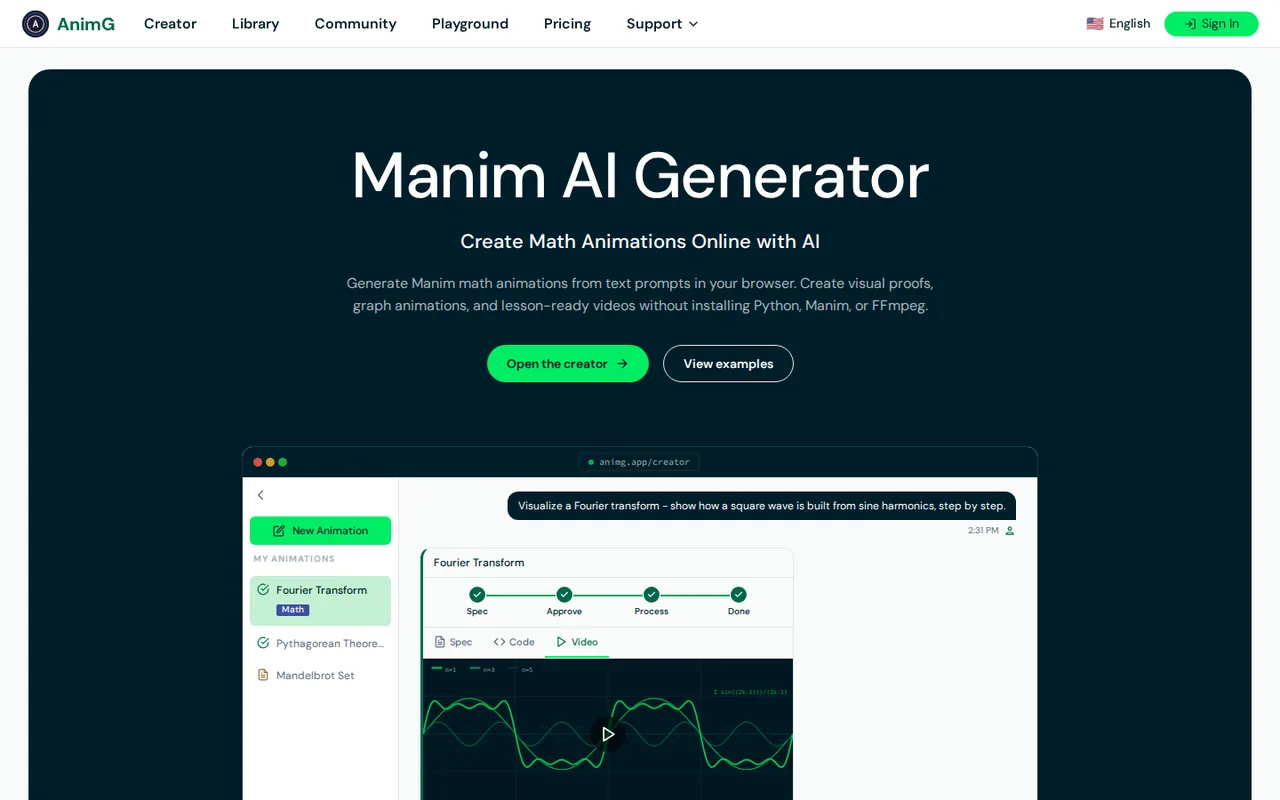
Turn a text prompt into a rendered Manim math animation in the browser, with no Python or Manim install
- Free access
- OpusClip: Free access
- AnimG: Free access
- Paid from
- OpusClip: USD 15 per month
- AnimG: USD 9.99 per month
- Plans listed
- OpusClip: 4
- AnimG: 2
- Public API
- OpusClip: Not confirmed
- AnimG: Not confirmed
Where OpusClip and AnimG differ
- PlansOpusClip lists 4 plans and AnimG lists 2.
Head to head
Each value from the tool’s profile and the vendor’s own pages
| OpusClip | Fact | AnimG |
|---|---|---|
| Access and price | ||
| Free access availableFree · USD 0 | Free accessSame | Free access availableFree · USD 0 |
| USD 15 per monthStarter | Lowest listed paid plan | USD 9.99 per monthPro |
| Free plan; Starter $15/mo, Pro $29/mo | Pricing model | Free plan (2 animations, watermark); Pro $9.99 a month |
| 4 | Plans listedDiffers | 2 |
| Not confirmed | Public API | Not confirmed |
| Not confirmed | Card to start | Not confirmed |
| Not confirmed | Open source | Not confirmed |
| What it is for | ||
| Turning long recordings into short vertical clips | Built for | Teachers, students and math YouTubers who want 3Blue1Brown-style explainer clips from a description, with an editable Manim code playground when they want control |
| Video & editing | CategorySame | Video & editing |
| Platforms |
|
| Not listed | Works with | Not listed |
| How current | ||
| Profile sources checked | ||
| Prices confirmed · Oct 4, 2026 | Pricing checkSame | Prices confirmed · Oct 17, 2026 |
Official source check for both tools. No hands-on testing and no score: “Differs” marks a documented difference, not a better tool.
Plans and prices
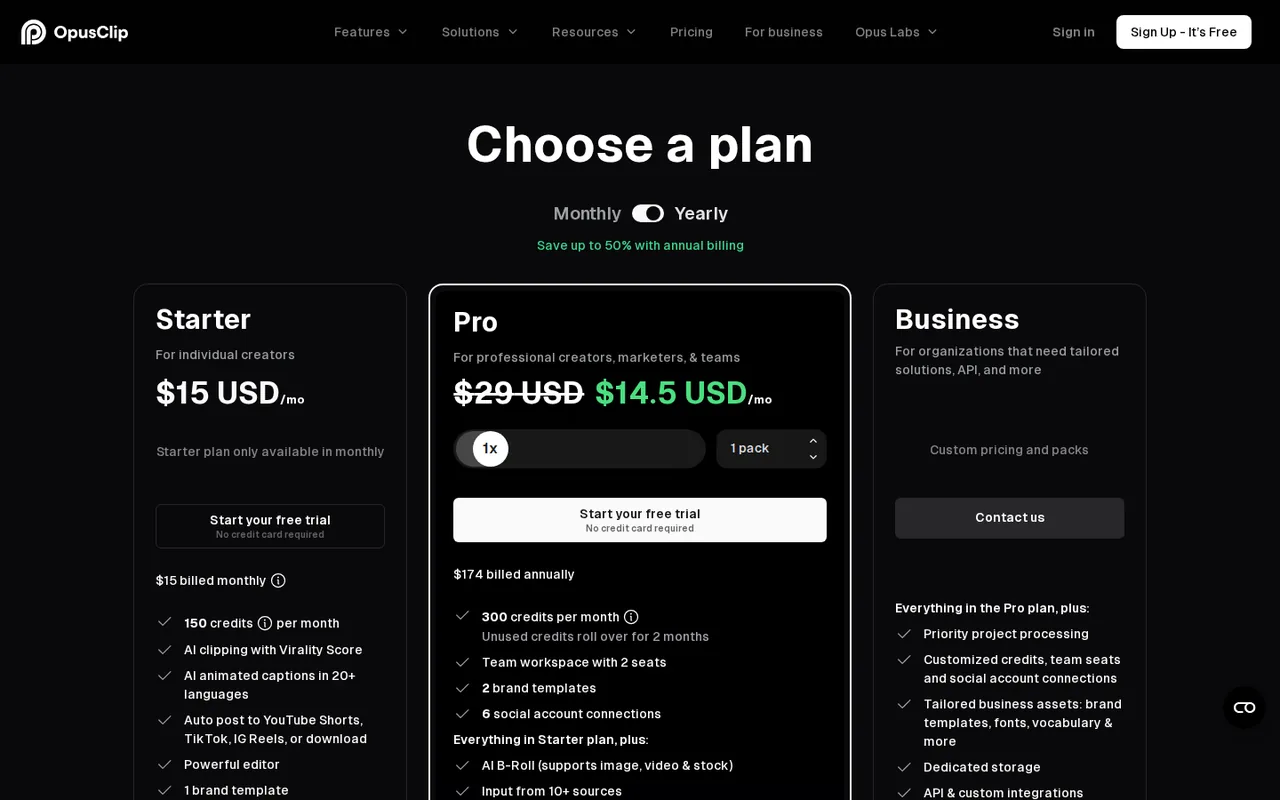
OpusClip
Prices confirmed · Oct 4, 2026- FreeUSD 0
- StarterUSD 15 per month
- ProUSD 29 per month
- BusinessCustom pricing
Strengths and limits
OpusClip
Strengths
- Meter is easy to predict: Credits equal source minutes, so cost can be estimated before importing.
- Long inputs accepted: The help center states support for videos up to 10 hours.
- Free plan is permanent: The Free plan is described as free forever, with 60 minutes a month.
Limits to plan around
- Watermark on Free exports: The pricing page lists animated captions with a watermark and no watermark-free export on Free.
- Short export window on Free: Free exports are limited to 3 days and media storage expires after 3 days.
- Extra credits need a pack: You cannot buy credits alone; a pack adds 300 credits and 2 seats.
AnimG
Strengths
- Free plan to try it: The subscription page lists a free plan with up to 2 AI Creator animations and 3 playground renders a day, and the educators page says no credit card is required.
- Spec review before rendering: The how-it-works page describes a specification step you approve or change before code is generated and rendered.
- No local setup: The homepage FAQ says nothing needs installing: no Python, Manim or FFmpeg.
Limits to plan around
- Free plan is small and watermarked: The subscription page limits free accounts to 2 animations at standard quality with a watermark, and playground renders to 480p with a watermark.
- Content may train its models: The terms say you grant a license to use your content, including to improve its AI models, and to show animations in its gallery or promotional materials.
- Google sign-in for full use: The terms say an account via Google authentication is required for generation, rendering and chat history; only limited playground use works without one.
See both products
Start from your task, not from a winner.
Run both tools on the same real task, then compare the result, how much editing it needs and how fast it uses your plan’s allowance.
How we reviewChange this pair
Choose tools
Choose two tools below. You can replace either selection at any time.
Audio & voice
Automation
Coding
Data & spreadsheets
Images & design
Presentations
Research & sources
Video & editing
Website builders
Writing & content
Comparing tools from different categories is fine, and often useful — a writing assistant and a research tool solve different halves of the same job. The table will show you exactly where they diverge.
Questions about comparing tools
How does the comparison work?
Add two tools to the comparison tray from any tool card, then open this page. The table pulls each tool's verified plan details, platforms, strengths and limits from its profile, so both columns carry the same kind of evidence, with a separate source-check date for each tool.
Do you declare a winner?
No. The table sets two tools against each other on documented facts, not on a score. Which one wins depends on your task, your budget and your usage volume — three things we cannot see from here.
Why are some cells empty or marked unverified?
Because we could not confirm that detail on the vendor's own pages. Rather than filling the gap with a figure from elsewhere, we mark it and say why on the tool's profile.
Can I compare more than two tools?
Not at once. Two columns keep the differences readable and force a real decision. Remove either selected tool to replace it, or clear both to start a new pair.
Every figure in the table above comes from the linked profile, where the source and the verification date are listed. Browse all tools or read the editorial policy.