AI Video Captions: Which Tools Caption a Video, and How to Deliver the File
An AI caption tool transcribes the speech in a video and times each line to the audio. This guide sorts the caption tools listed on this site by what they hand back, captions drawn into the picture or a separate SRT or VTT file, then walks through six steps from upload to delivery, with each plan’s limit at the step where it matters.
By Elias Brandt · Updated 9 Oct 2026 · About 13 min read · Plan terms taken from each tool profile
The short answer
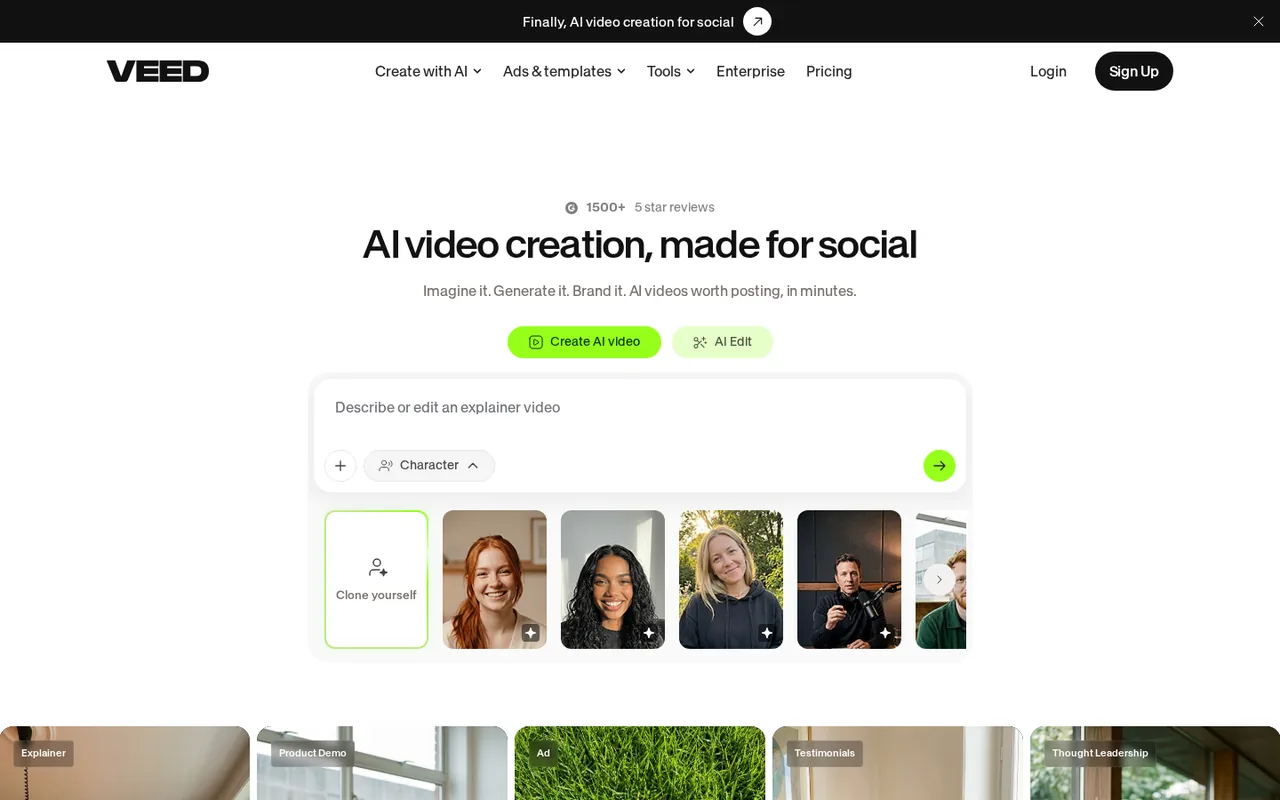
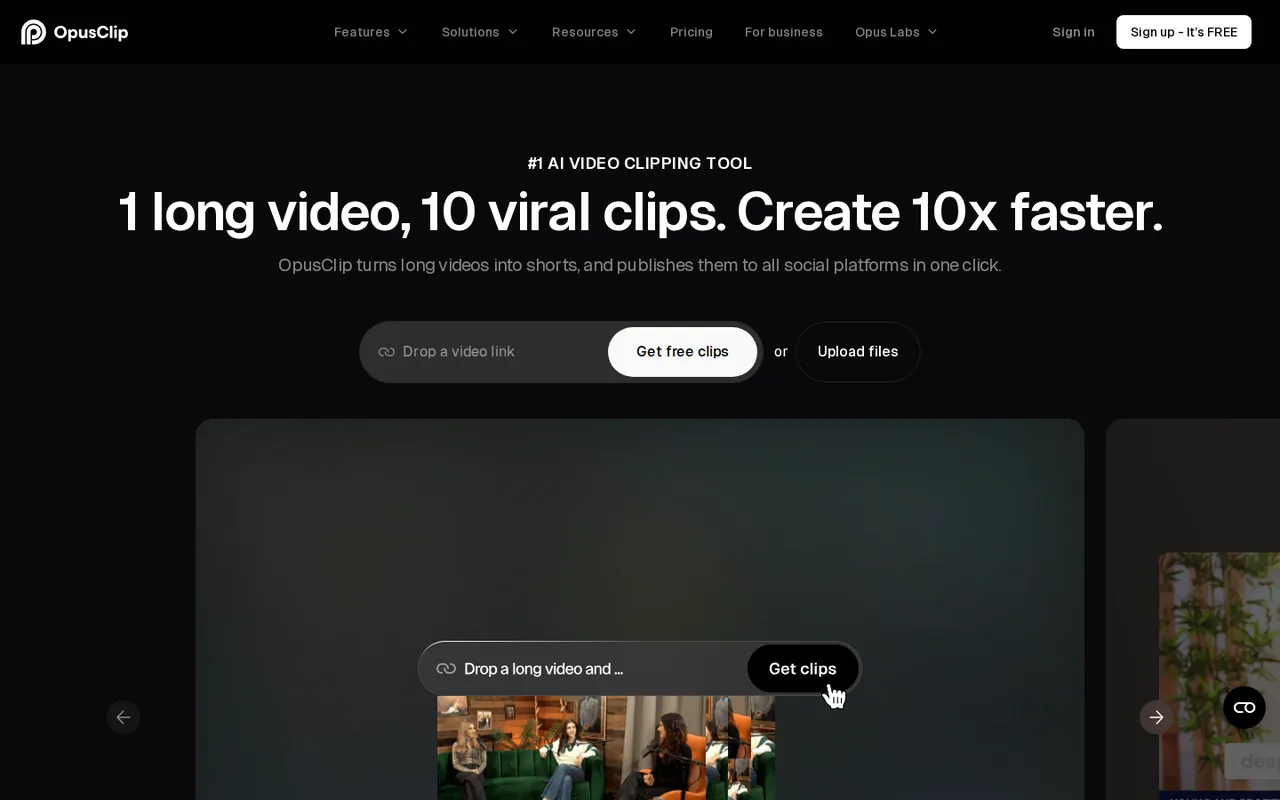
Captions drawn into a social clip? VEED captions and styles a video in a browser editor and burns the text in; OpusClip adds animated captions while it cuts long videos into clips. Free exports from both carry a watermark.
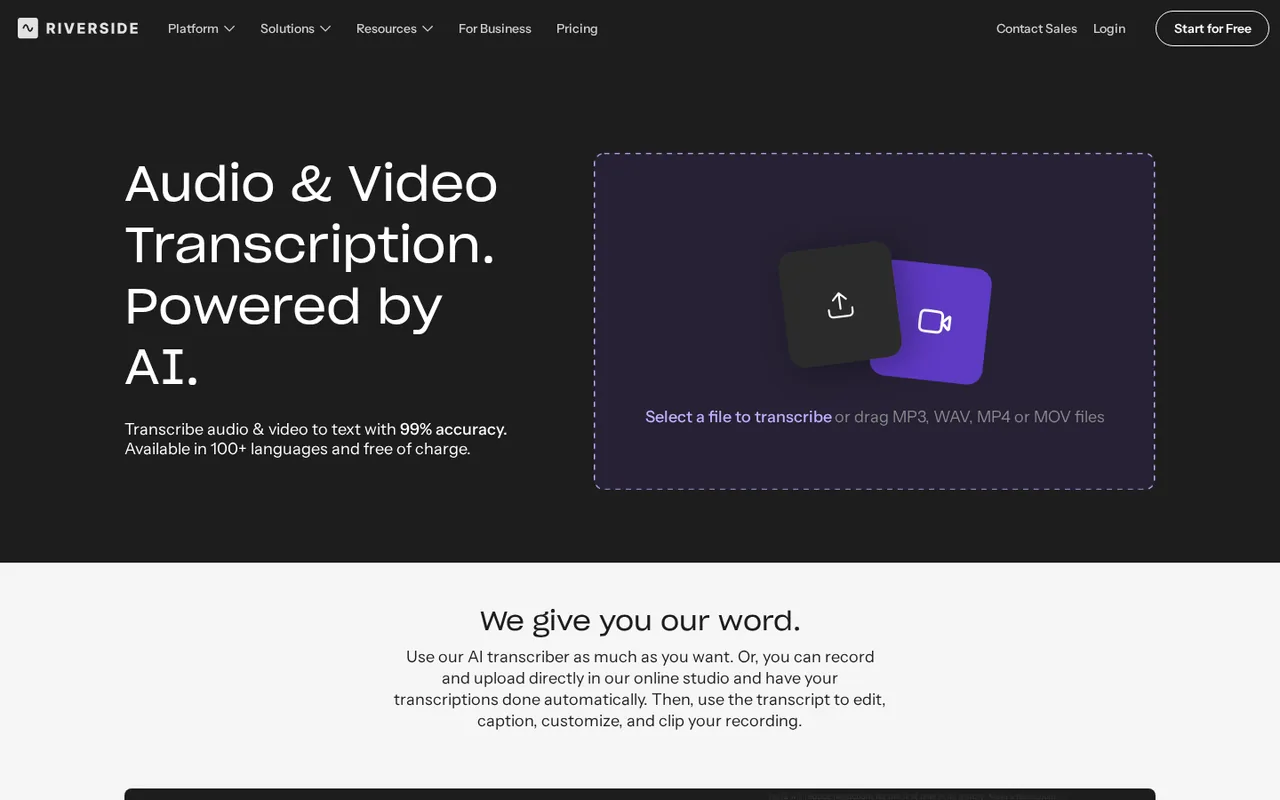
A separate SRT or VTT file? Riverside’s free transcriber returns SRT without an account, UniScribe exports SRT and VTT, and VEED lists SRT, VTT and TXT downloads on paid plans.
Editing the recording as well? Descript and Riverside fix caption text through the transcript. DaVinci Resolve opens SRT, VTT and TTML files on a subtitle track for the final check.
Which AI caption tools burn captions in, and which hand you a file?
The six tools at a glance
| Tool | Starts from | What you get back | Free access | First paid plan |
|---|---|---|---|---|
 VEED VEED | A video in the browser editor | Styled captions burned into the video, or SRT, VTT and TXT files on paid plans | 720p exports with a watermark; the Free subtitle allowance is not published | $12 per user per month, billed yearly as $147 (Creator, unlimited auto subtitles) |
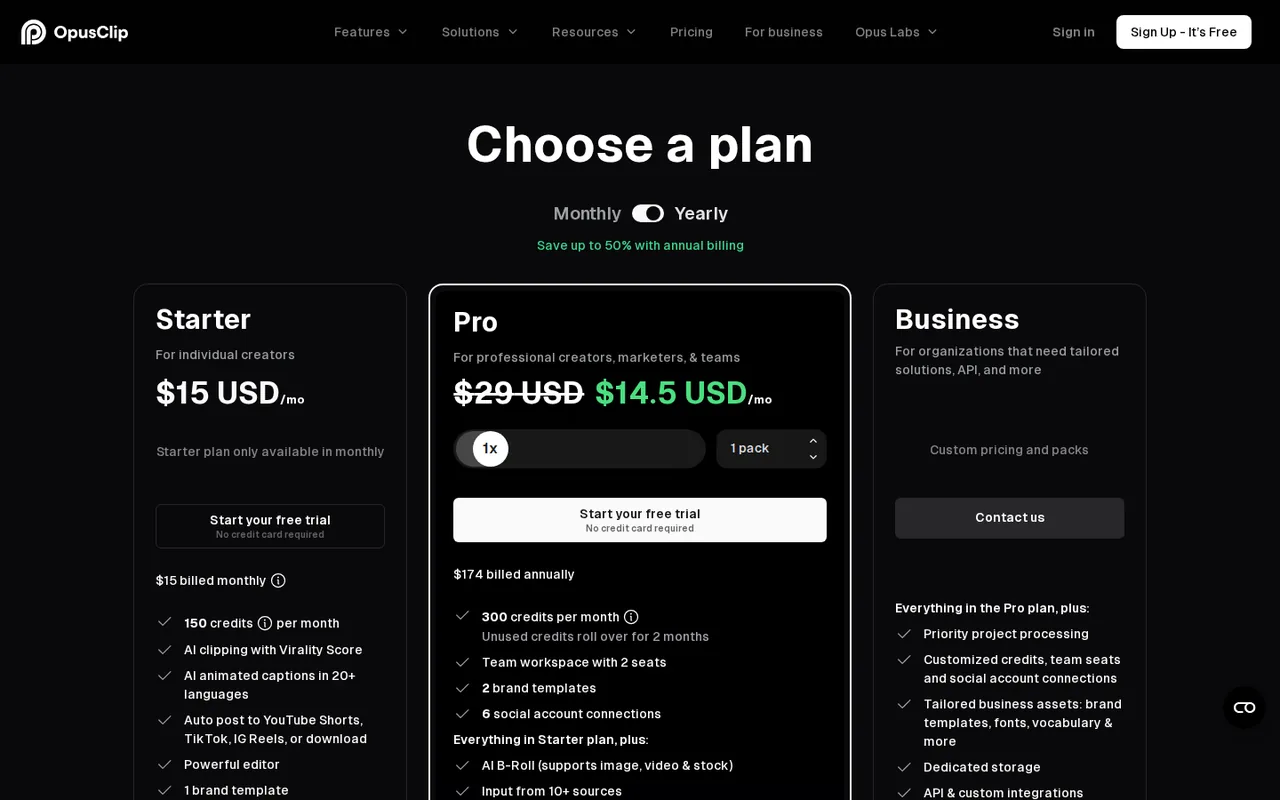
 OpusClip OpusClip | A long video from YouTube or a local file | Short clips with animated captions, in 9:16 on Free and Starter | 60 processing minutes a month; captions carry a watermark | $15 per month (Starter, 150 minutes; billing period not stated) |
 Descript Descript | A recording you import or record | An edited video, SRT or VTT subtitle exports and text transcripts with timecodes | 60 media minutes a month; 720p video with a watermark | USD 24 per person per month billed monthly (Hobbyist; USD 16 billed yearly) |
 Riverside Riverside | An MP3, WAV, MP4 or MOV file, no account | A TXT or SRT transcript; animated captions in the paid editor | The transcription tool is free; the editor needs a 14-day trial with a card | $29 per month billed monthly (Pro; $24 billed annually) |
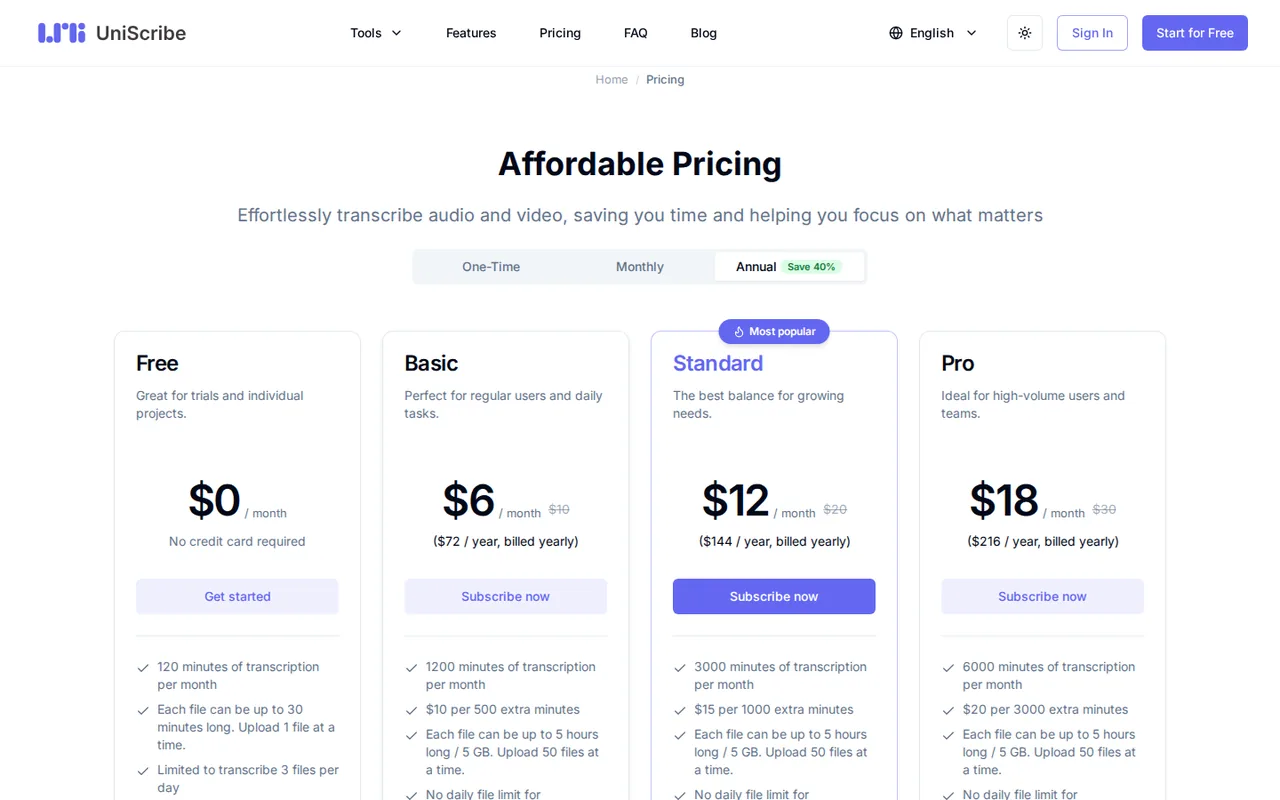
 UniScribe UniScribe | Audio or video in 20+ formats | TXT, DOCX, PDF, SRT, VTT or CSV, in 63 languages | 120 minutes a month, files up to 30 minutes, 3 files a day | $10 per month billed monthly (Basic; $6 per month billed yearly) |
 DaVinci Resolve DaVinci Resolve | Your edit and a subtitle file | Subtitle tracks imported or exported as SRT, VTT or TTML | The free version makes subtitle tracks by hand | $295 purchase (Studio, which adds text-based editing) |
Plan names and amounts from each tool’s profile, which shows the date its plan terms were checked. VEED’s profile lists yearly billing only.
Sources: VEED add subtitles, OpusClip pricing, Riverside free transcription, UniScribe pricing, DaVinci Resolve Edit page and subtitles.
Captions, a subtitle file or a timestamped transcript?
An AI caption is text from speech recognition, split into cues that each have a start time, an end time and a short line of text. A readable time marker such as [00:12] helps a reviewer find a passage; an SRT or VTT cue also needs the moment the text leaves the screen.
| Recipient’s job | Deliverable | Agree before starting |
|---|---|---|
| Find a quote or review an interview | A readable transcript with time markers | Recording version, where the timestamps start and the marker interval |
| Switch text on and off in a video player | A separate SRT or VTT file | Accepted format, language, cue timing and line limits |
| Keep styled text visible in every copy of the video | Captions burned into the picture | Placement, branding and whether a text file is also required |
| Locate footage inside an editing project | Source or sequence timecode, as the editor asks | Source versus sequence, starting timecode and frame rate |
Renaming a TXT transcript to .srt cannot supply the missing end times. A source timecode from an editing timeline may also differ from elapsed time in the exported video, so ask which clock the recipient uses.
How do you caption a video with AI, step by step?
Step 1: Check what the plan exports before you upload
In shortThe free tiers show the workflow, but watermarks, short export windows and missing file downloads decide whether the result can be delivered.
| Check | VEED | OpusClip | Descript | Riverside | UniScribe |
|---|---|---|---|---|---|
| What Free produces | 720p video with a watermark | Captions with a watermark, 1080p, exportable for 3 days | 720p video with a watermark | The free tool’s file; the editor needs a trial or a paid plan | Transcripts from the basic model, media kept for 30 days |
| Monthly allowance | Unlimited auto subtitles on Creator; Free not published | 60 processing minutes on Free, 1 credit per source minute | 60 media minutes on Free; every import and retake counts | Unlimited transcriptions on Pro | 120 minutes on Free |
| File or length limit | Not covered in the sources checked | Videos up to 10 hours; local files up to 10GB | Not covered in the sources checked | Not covered in the sources checked | 30 minutes per file and 3 files a day on Free; 5 hours or 5 GB on paid plans |
Descript’s subtitle help page documents SRT and VTT settings without saying which subscription plans include them, so confirm the option in the account before promising a free file. If it is missing, deliver a labelled review copy or choose a plan that names the export. VEED draws the line in writing: on Free, expect captions burned into a watermarked review copy rather than a separate file.
Sources: VEED add subtitles, OpusClip pricing, Descript subtitle export, Descript pricing, Riverside free transcription, UniScribe pricing.
Step 2: Upload the final cut, in the right language
In shortCaptions are timed to one exact version of the video. Transcribe the cut you will publish, not an earlier edit.
Choose the spoken language at upload. Descript transcribes 25 languages on every plan, UniScribe 63, and Riverside’s free tool asks for the language of each file; OpusClip lists multi-language transcription without naming the languages. Translating finished captions into another language is a separate job, covered in how to translate SRT subtitles.
Speaker names need their own check. Riverside’s free tool attributes a file with several speakers to one speaker, and its speaker labels come from the separate track each participant records in a Riverside session. UniScribe lists speaker identification and custom vocabulary on paid plans.
To practise before a client file, record yourself reading this fictional announcement for 45 seconds, with natural pauses: “The workshop starts at 14:30, not 14:00. Bring the Q7 adapter. Room B12 is on the second floor. Ask for Marisol Okonkwo at the desk.” Save it as workshop-base.mp4, then make workshop-plus5.mp4 with exactly five seconds of silence before the same recording. Before importing either file, note where each term is heard; that is the answer key, and the second video’s times are the first plus five seconds.
term,base_heard_seconds,expected_plus5_seconds,observed_export_seconds
14:30,,,
not 14:00,,,
Q7,,,
B12,,,
Marisol Okonkwo,,,
Sources: Descript pricing, UniScribe overview, Riverside free transcription.
Step 3: Correct the words without cutting the media
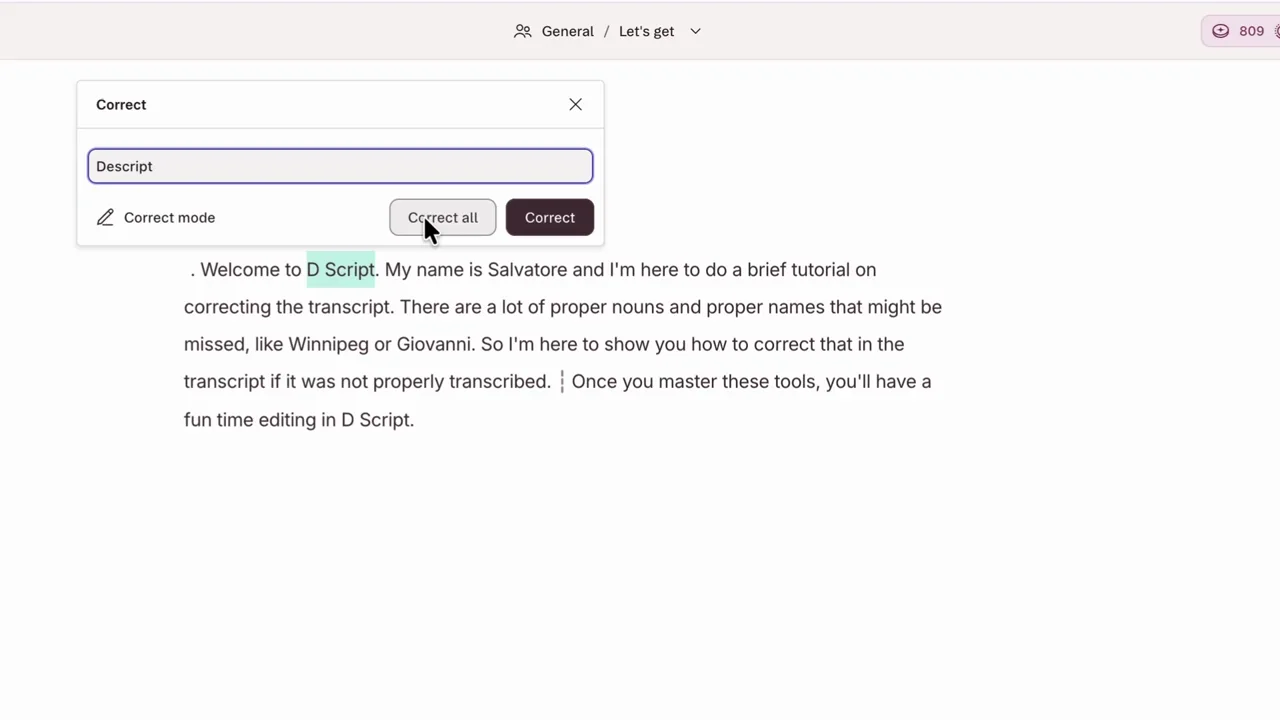
In Descript, deleting a word in the transcript cuts it from the audio or video. To fix a misheard word, select it and choose Correct, or press C: the text changes and the media underneath does not. Wait for the alignment to update before checking timing, and use Correct All only when every occurrence needs the same replacement. Riverside’s paid editor also cuts media when words are deleted, and its Correct everywhere fixes a repeated error in one step.
See the Descript profile for plans, limits and sources. See the Riverside profile for plans, limits and sources.
Visit Descript (opens in a new tab)Visit Riverside (opens in a new tab)
Sources: Descript transcript correction, Descript: edit like a doc, Riverside pricing.
Step 4: Set line limits, then check timing
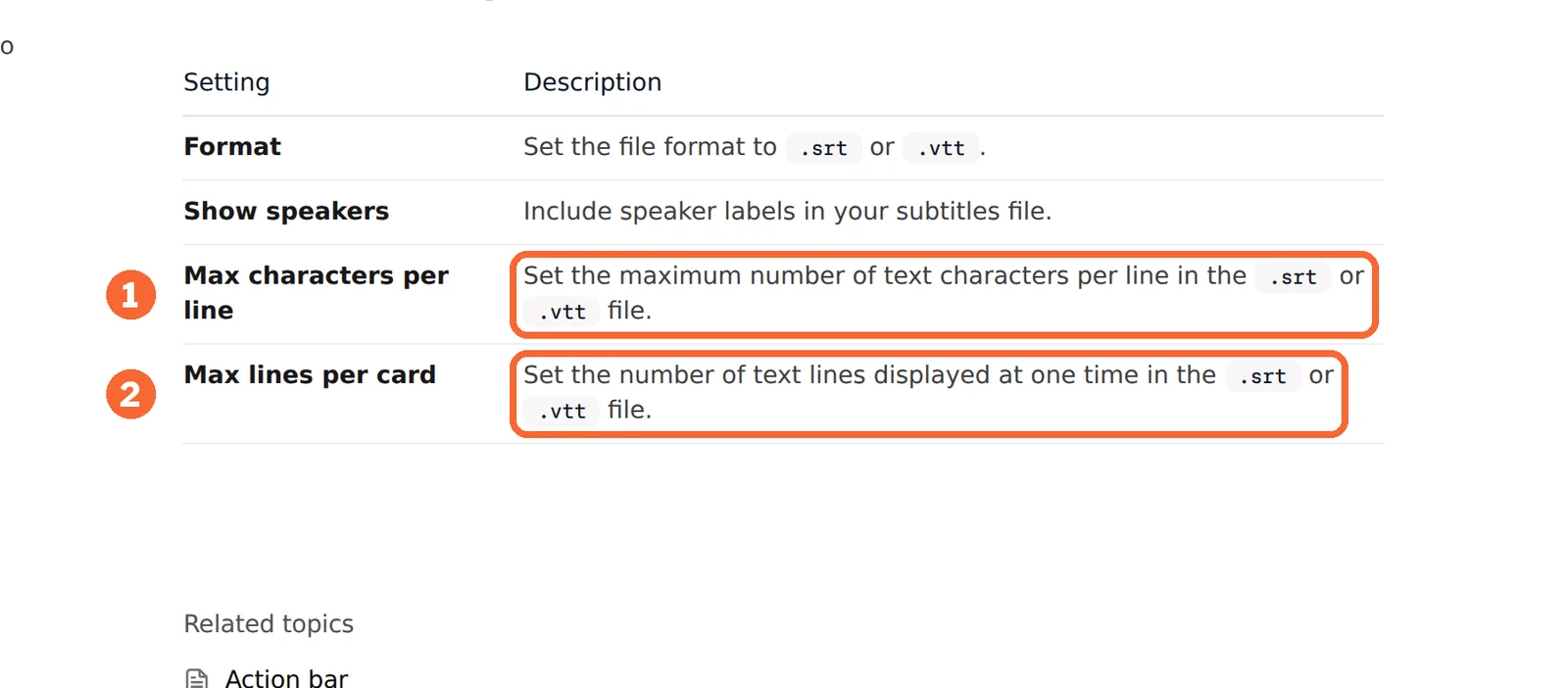
For the practice file, use 32 characters per line and at most two lines per cue. These are exercise values, not a universal subtitle rule; a recipient’s delivery specification comes first. Descript’s subtitle export has settings for both, and the export can change the line breaks, so inspect the file afterwards. Keep “not 14:00” on one line: a break straight after “not” makes the correction harder to follow.
A hand-written cue, not tool output, shows what a five-second offset does:
1
00:00:12,000 --> 00:00:14,500
Bring the Q7 adapter.
If exactly five seconds are added before the media, the same cue becomes 00:00:17,000 --> 00:00:19,500: both boundaries move. If every cue is early by the same amount, look for a start offset or the wrong media version. If the gap grows as playback goes on, one shift will not fix it; rebuild the timing against the final cut.
Sources: Descript subtitle export.
Step 5: Burn the captions in, or export the file
| Tool | Captions in the picture | Separate file | Plan note |
|---|---|---|---|
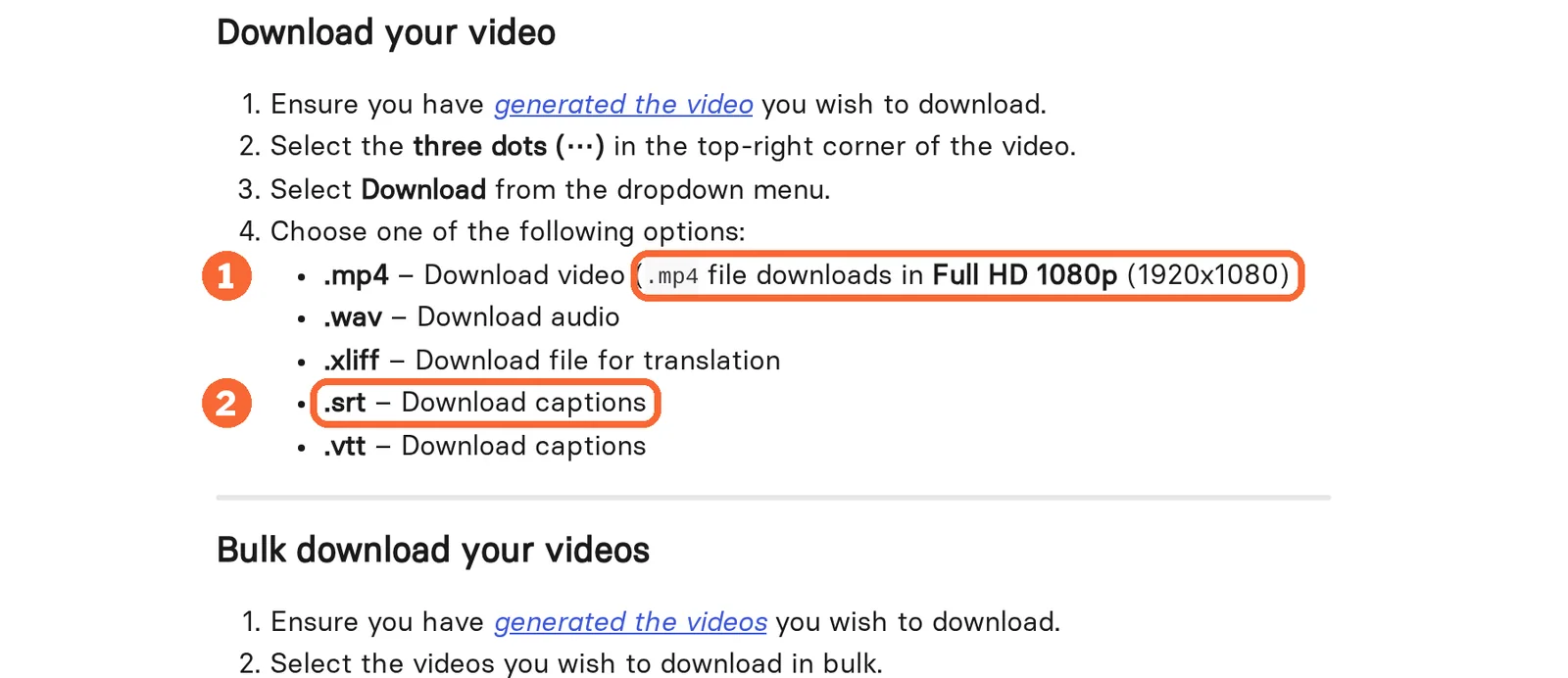
| VEED | Styled in the editor and burned in | SRT, VTT or TXT | Files on paid plans; Free exports 720p with a watermark |
| OpusClip | Animated captions on each clip | Not covered in the sources checked | Watermark on Free; Pro adds 1:1 and 16:9 and export to Premiere Pro and DaVinci Resolve |
| Descript | Not covered in the sources checked | SRT or VTT, plus text transcripts with timecodes | Subtitle export plans not stated; video watermark on Free |
| Riverside | Animated captions in the editor | SRT or TXT from the free tool | Editor needs the trial or a paid plan |
| UniScribe | No video output listed | SRT, VTT, TXT, DOCX, PDF or CSV | Free uses the basic model |
| DaVinci Resolve | Not covered in the sources checked | SRT, VTT or TTML | Subtitle tracks on the free version |
 HeyGen HeyGen  Synthesia Synthesia | HeyGen AI Studio has caption controls; Synthesia: not covered in the sources checked | HeyGen: a captions SRT option; Synthesia: SRT and VTT with the MP4 | Synthesia downloads start on Starter, USD 19 billed monthly; HeyGen Free is watermarked |
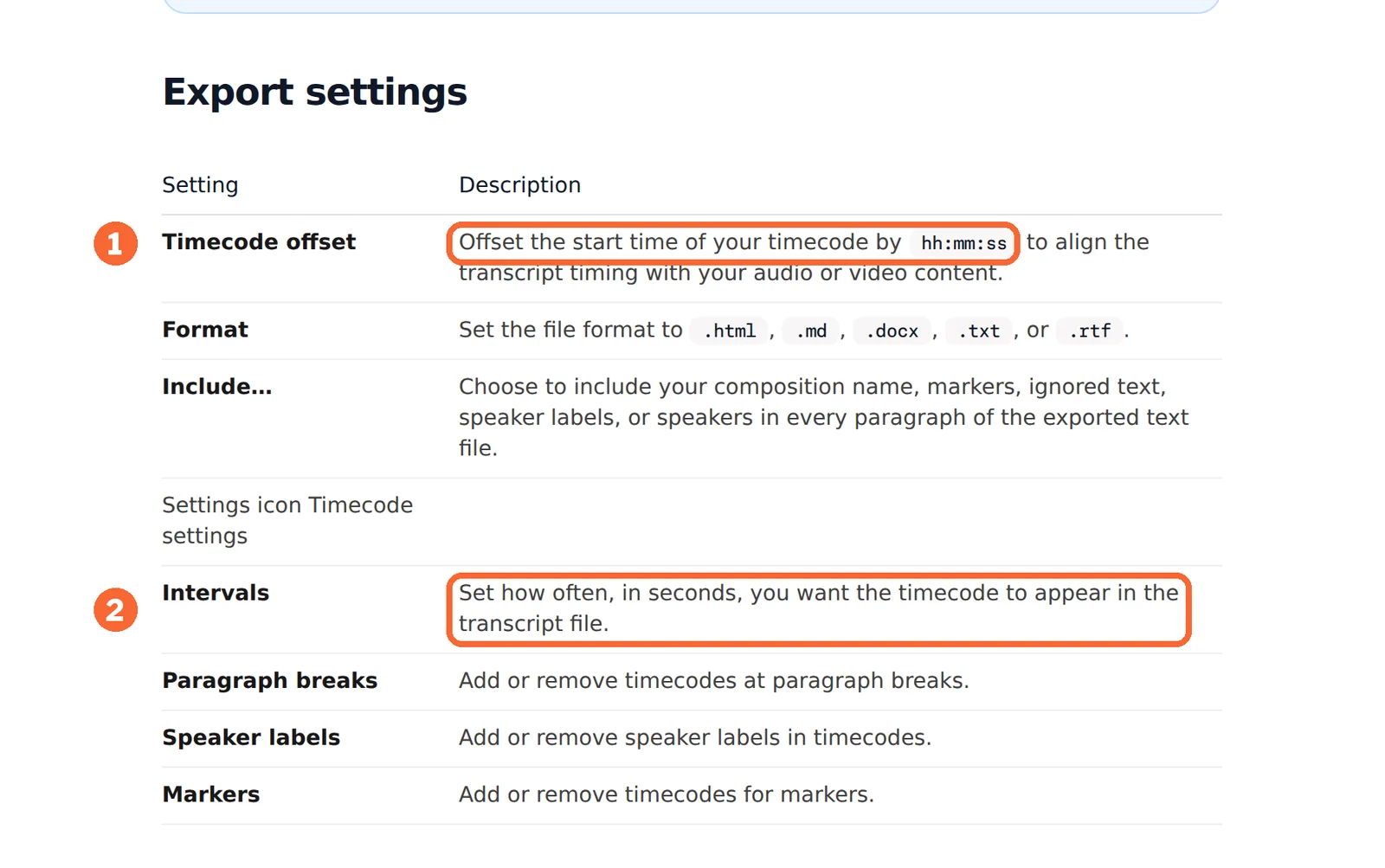
For a transcript rather than captions, Descript’s text export adds timecodes at a chosen interval or at paragraph breaks, with an optional offset in hh:mm:ss. Record the offset you used: it changes the displayed reference, not the media timing, and it cannot repair captions timed against a different cut.
See the VEED profile for plans, limits and sources. See the OpusClip profile for plans, limits and sources. See the UniScribe profile for plans, limits and sources.
Visit VEED (opens in a new tab)Visit OpusClip (opens in a new tab)Visit UniScribe (opens in a new tab)
Sources: VEED add subtitles, OpusClip pricing, Descript transcript export, UniScribe pricing, DaVinci Resolve Edit page and subtitles, HeyGen download and export, Synthesia download help.
Step 6: Check the file against the matching video, then deliver
Search the saved file for every answer-key term, including the negation, then load it next to its video in the player the recipient will use. DaVinci Resolve’s free version can take the file onto a subtitle track for this check and export it again as SRT, VTT or TTML; text-based editing from automatic transcription is a Studio addition. For numbering and timestamp errors, use the SRT checker below.
| What you see | Check next | Repair |
|---|---|---|
| Every cue is early by the same amount | Leading silence and recording version | Align to the final media, export again and replay both ends |
| Timing gets worse as the video plays | Different edits or playback speed | Rebuild timing against the final cut rather than shifting every cue |
| The file has the wrong spelling | Which composition and export version you used | Correct the intended version, export again and search the saved file |
| Text appears twice | Burned-in captions plus a player caption track | Deliver the agreed combination and turn off the duplicate |
| The player rejects the file | Required format and timestamp syntax | Export the accepted format instead of renaming the extension |
| Export asks for payment | The plan and the specific output option | Keep a labelled preview and decide separately whether to pay |
Name the media and caption file together, for example workshop-final.mp4 and workshop-final.en.srt. Add a short note with the tool, plan, export date, media duration, where the timestamps start, the language and the line limits, and list unresolved words rather than guessing them. If the video is cut again later, repeat the timing check before reusing its captions.
See the DaVinci Resolve profile for plans, limits and sources.
Visit DaVinci Resolve (opens in a new tab)
Sources: DaVinci Resolve Edit page and subtitles, DaVinci Resolve Studio.
Check an SRT file and shift its timing
Find numbering and timestamp errors, then move every cue by the same number of seconds. Your text stays in this browser; nothing is uploaded or saved by this tool.
This checks file structure only. It cannot assess the words, readability or alignment with audio. It does not transcribe or translate a recording.
UTF-8 text, up to 500 KB (500,000 bytes). The example is hand-written synthetic data, not a product result.
Use 5 for later or -5 for earlier. Up to three decimal places. No cue may move before zero.
If supplied, the shifted cues must end within this length.
Choose a file, paste text or try the example.
Check details
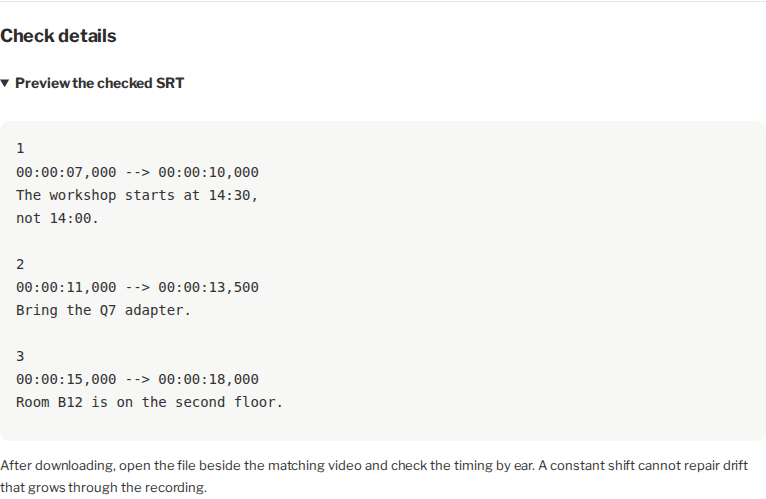
Preview the checked SRT
After downloading, open the file beside the matching video and check the timing by ear. A constant shift cannot repair drift that grows through the recording.
What does a month of captioned video cost in each tool’s unit?
Two workloads, priced
| Tool | Usage is counted as | Eight 10-minute videos (80 minutes) | One 45-minute recording | Smallest plan that fits |
|---|---|---|---|---|
| VEED | Auto subtitles, outside credits on Creator | Unlimited on Creator; Free allowance not published | Same | Creator, $12 per user per month billed yearly as $147, for SRT or VTT files |
| OpusClip | 1 credit per source minute, rounded to whole minutes | 80 credits: more than Free’s 60, inside Starter’s 150 | 45 credits: inside Free’s 60, with watermarked captions | Starter, $15 per month, for clips without a watermark |
| Descript | Media minutes for everything imported or recorded | 80 media minutes: more than Free’s 60; Hobbyist has 600 | 45 of Free’s 60, if nothing is imported twice | Hobbyist, USD 24 billed monthly, for video without a watermark |
| Riverside | No unit listed for the free tool | Eight uploads to the free tool | One upload; all speakers come back as one | The free tool for SRT; Pro, $29 billed monthly, for captions in the editor |
| UniScribe | Minutes a month, with per-file and per-day caps | 80 of Free’s 120 minutes, at 3 files a day: three days of uploads | Over Free’s 30-minute file cap | Free for the short videos; Basic, $10 billed monthly, for the long file, since paid plans accept files up to 5 hours |
| DaVinci Resolve | No usage unit: a one-time Studio licence | Subtitle tracks typed by hand on the free version | Same | Studio, $295 purchase, for text-based editing from automatic transcription |
Arithmetic on the plan terms in each profile, not observed usage. Retakes and re-imports count again in Descript; OpusClip monthly-plan credits expire after 60 days and UniScribe subscription minutes do not carry over.
Sources: VEED pricing, OpusClip credits, Descript media minutes, Riverside pricing, UniScribe pricing, DaVinci Resolve Studio.
Which caption formats and limits does each tool list?
In shortEleven capabilities marked from the six caption-tool profiles and this guide’s Descript help pages. A dash means the sources checked do not cover it, not that the tool lacks it.
| Capability | VEED | OpusClip | Descript | Riverside | UniScribe | DaVinci Resolve |
|---|---|---|---|---|---|---|
| Getting the words | ||||||
| Transcribes your upload | Offeredauto subtitles | Offeredmulti-language | Offeredevery plan | Offeredfree tool, no account | Offered20+ file formats | Partlyautomatic transcription, Studio |
| Languages listed | Not listednot covered in the sources checked | Partlycount not listed | Offered25 | Partlychosen per file | Offered63 | Not listednot covered in the sources checked |
| Fixing and styling | ||||||
| Correct text without cutting media | Not listednot covered in the sources checked | Not listednot covered in the sources checked | OfferedCorrect, or press C | PartlyCorrect everywhere, paid editor | Not listednot covered in the sources checked | Offerededit tracks by hand |
| Styled or animated captions | Offeredstyled in the editor | Offeredanimated, brand templates | Not listednot covered in the sources checked | Offeredanimated captions | Not listednot covered in the sources checked | Not listednot covered in the sources checked |
| Vertical and square formats | Not listednot covered in the sources checked | Partly9:16; 1:1 and 16:9 on Pro | Not listednot covered in the sources checked | Not listednot covered in the sources checked | Not listednot covered in the sources checked | Offeredsquare and vertical projects |
| Getting the file out | ||||||
| Captions burned into the video | Offeredburn in | Offeredon each clip | Not listednot covered in the sources checked | Partlypaid editor | Not listedno video output | Not listednot covered in the sources checked |
| SRT file | Partlypaid plans | Not listednot covered in the sources checked | Partlyplans not stated | Offeredfree tool | Offeredexport | Offeredimport and export |
| VTT file | Partlypaid plans | Not listednot covered in the sources checked | Partlyplans not stated | Not listednot covered in the sources checked | Offeredexport | Offeredimport and export |
| Other text formats | PartlyTXT, paid plans | Not listednot covered in the sources checked | Offeredtranscript with timecodes | OfferedTXT | OfferedTXT, DOCX, PDF, CSV | OfferedTTML |
| Hand-off to another editor | Not listednot covered in the sources checked | PartlyPremiere Pro and DaVinci Resolve, Pro | Partlytimeline export, Creator up | Not listednot covered in the sources checked | Not listednot covered in the sources checked | Not listedis itself the editor |
| Watermark-free video | Partlyfrom Creator | Partlyfrom Starter | Partlyfrom Hobbyist | Not listednot covered in the sources checked | Not listedno video output | Not listednot covered in the sources checked |
offered partly or with limits not listed on the profile.
Cells come from each tool’s profile on this site, which cites the vendor pages and the date they were checked; Descript’s subtitle and transcript rows come from its help pages linked above.
Questions, and what this guide does not judge
Common questions
How do I caption a video with AI?
Upload the final cut to a caption tool, choose the spoken language and let it transcribe. Fix names, numbers and negatives in the transcript, set a line length, then burn the captions into the video or export an SRT or VTT file. Play the result beside that same cut before you send it.
What is an AI caption?
It is on-screen text that speech recognition writes from a video’s audio and times to the speech. Each caption, or cue, has a start, an end and a short piece of text. It can be drawn into the picture or kept in a separate file that a player lets viewers switch on and off.
Which AI tool should I use for captions?
Choose by what you must hand over. VEED and OpusClip suit social clips with styled captions in the picture. Riverside’s free transcriber and UniScribe return SRT files from an upload. Descript and Riverside fit when the recording is edited too, and DaVinci Resolve fits a final check on an editing timeline.
Can I caption a video with AI for free?
Partly. Riverside’s transcriber returns an SRT file without an account, and UniScribe’s free plan covers 120 minutes a month in files of up to 30 minutes. Free video exports from VEED, OpusClip and Descript carry a watermark, and VEED keeps caption file downloads for its paid plans.
Should captions be burned in or delivered as an SRT file?
Burn them in when the text must stay visible in every copy of the video, whatever player shows it. Deliver an SRT or VTT file when viewers should be able to switch captions off, when a platform asks for a caption track, or when the wording may change later without exporting the video again.
What this guide does not judge
Caption generator pages in the search results lead with accuracy figures, accent handling, speed, caption styles and claims about reach or search visibility. None of the vendor pages behind this guide document these in a way that compares tools on the same recording, so no tool is ranked on them. Accessibility compliance for a specific law or platform is also outside what the sources cover.
Kapwing, Captions, Adobe Express, Powtoon and AutoCaption appear in search results for this task. They are left out until each has a profile with checked plan terms. More editors sit in the video category.
Run the two practice recordings from Step 2 through one shortlisted tool on the plan you would use, and record the plan, date and export options shown. Correct the transcript, export the caption file or captioned video, then search the saved file for every answer-key term and play it beside the matching video.
How this guide was made
Plans, units, inputs and exports come from the VEED, OpusClip, Descript, Riverside, UniScribe, DaVinci Resolve, HeyGen and Synthesia profiles on this site, which cite the vendors’ pricing and help pages and carry their own check dates. Descript’s correction, subtitle and transcript export details come from its help pages linked in each step. Sections follow the topics the top-ranking pages for this search cover, limited to what the vendors document. The practice script, cue example and checker are editorial material; no captions were generated for this guide and no rating is given. See our editorial policy.